How StarTrack Integration Work
Last updated: April 29th, 2024
In this article:
How to generate StarTrack label
Best work with Google Chrome
Step 1 :
- Go to Pick & Pack > Packing.
- Scan the barcode on the Packing Slip to start packing.
- Verify the items in the orders. (If enable)
Step 2:
- Enter shipment weight and dimension
Step 3:
- On the "Packing Tracking" page, you'll be prompted to print the shipping label.
- Scan the parcel # barcode on the packing slip or type in "Confirm" to proceed.
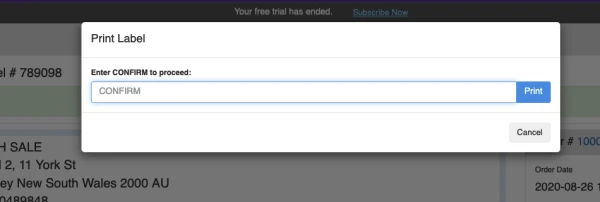
Step 4:
- Print shipping label.
- Record Tracking number.
Google Chrome: Follow the instructions on "Print dialogue" to print the label.
Other Browser: Click "Download PDF Label" and print the PDF file.
How to upload manifest to StarTrack
Step 1:
-
Once you had completed packing all parcels:
-
Go to Integrations -> Australia Post
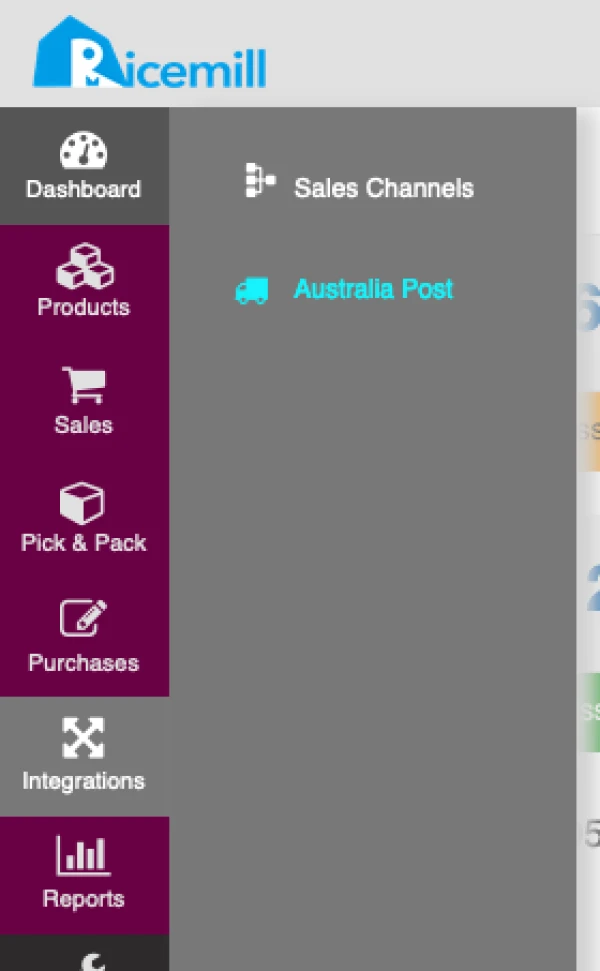
Step 2:
- Click on "Pending Manifest" of StarTrack account
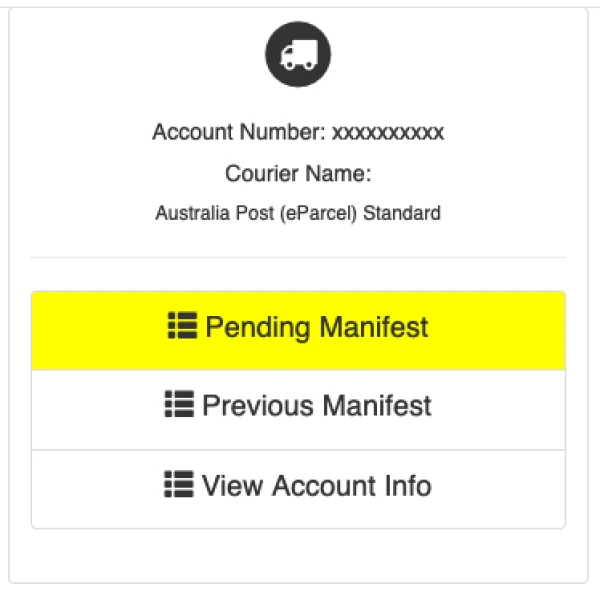
Step 3:
- Select all the shipments to be included in the StarTrack Express manifest.
- Click "Upload to Australia Post" to transfer shipments data to StarTrack Express.
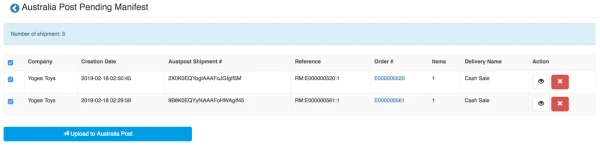
Step 4:
- Print the StarTrack Express manifest.

Step 5:
Skip this step if "Dispatch parcel as soon as the tracking number is recorded" is turn on at Pick and Pack settings.
- Go to Pick & Pack > Dispatch.
- Select the parcel to dispatch.