Last updated: April 17th, 2024
In this article:
What is Available Qty and Bin Location Qty?
Available Qty
- Available qty is your inventory qty that is available for sales.
Bin Location Qty
- A bin location is a space/location in a warehouse where an item is located.
- Bin Location qty is the inventory qty you store in a bin location.
- It included the inventory qty you had already sold but not yet pick and pack.
Other labels
To Pick Qty
- Qty awaiting to pick for new orders.
Purchase Receiving Qty
- Qty receive from Supplier that already been store in Bin Location but not yet publish (Make available).
Unallocated Qty
- Qty showing Available Qty more than Total Bin Location Qty.
Over-allocated Qty
- Qty showing Available Qty less than Total Bin Location Qty.
How Sales Order and Picking affected Available Qty and Bin Location Qty
Diagram 1:
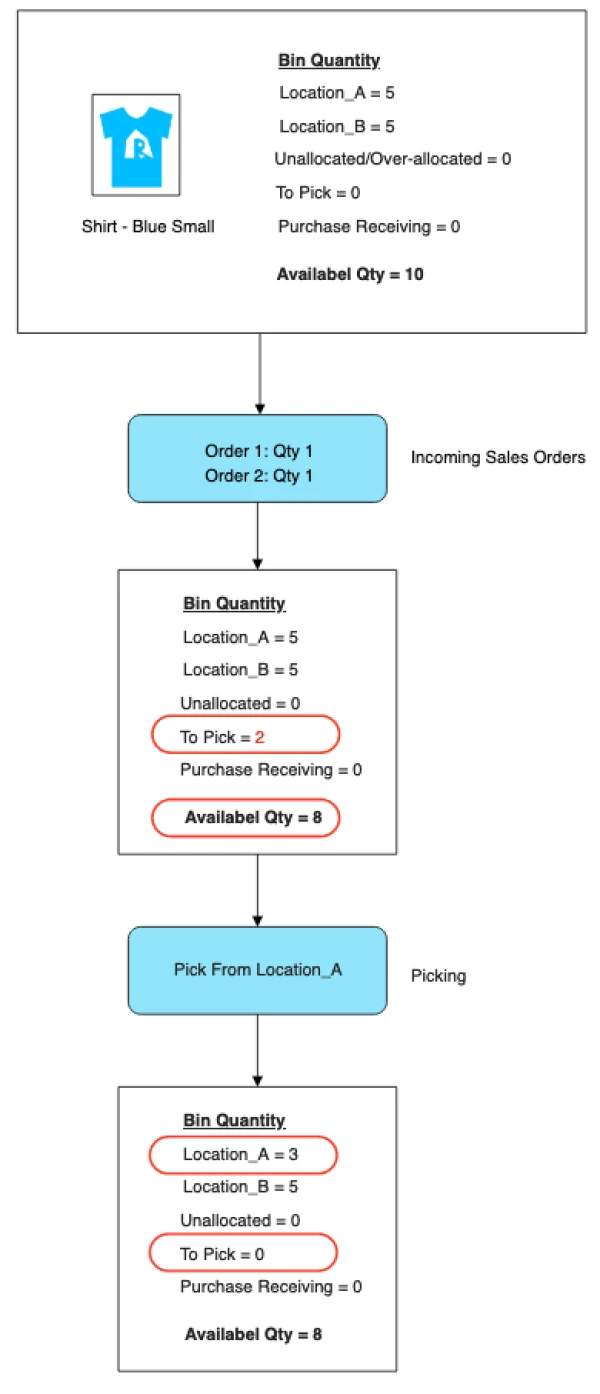
New Sales Order
- When a sales order creates in Ricemill (Draft order excluded), Available qty will be deducted. Example in diagram 1, Available qty change to 8.
- To Pick qty change according to Order's item qty. Example in diagram 1, To Pick qty change to 2.
- No change for Bin Location as no item is being picked from Bin Location.
Available qty = Total Bin Location Qty - Pick Qty = (5+5) - 2 = 8
Picking
- After all item qty being picked, for example, if you pick all item qty from Bin Location "Location_A", Qty in "Location_A" will be deducted. Example in diagram 1, "Location_A" qty change to 3.
- To Pick qty change according to item qty picked. Example in diagram 1, To Pick qty change to 0.
Available qty = Total Bin Location Qty - Pick Qty = (3+5) - 0 = 8
How Purchase Order Receiving and Publish affected Available Qty and Bin Location Qty
Diagram 2:
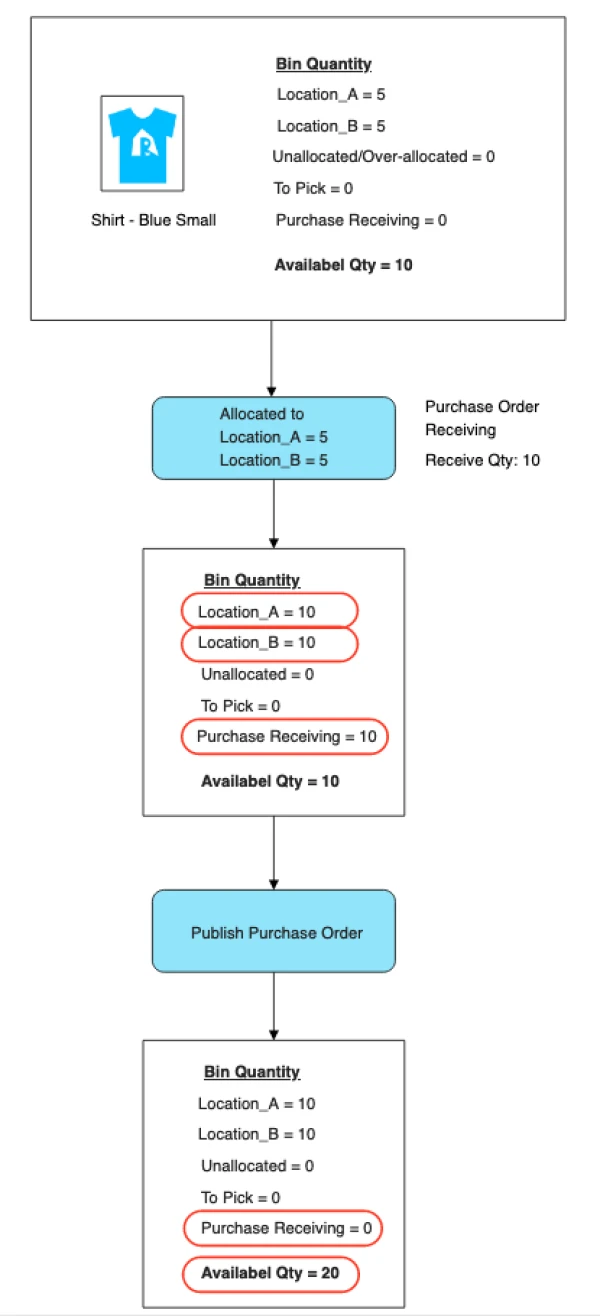
Purchase Order Receiving
- When you start putting away item you receive and assign to Bin Location (Using Receiving), Bin Location Qty will be added. Example in diagram 2, Both Bin Location(Location_A and Location_B) Qty change to 10.
- Purchase Receiving qty change according to receiving item qty. Example in diagram 2, Purchase Receiving qty change to 10.
- No change for Available qty as Purchase order not yet made available (Publish).
Available qty = Total Bin Location Qty - Purchase Receiving Qty = (10+10) - 10 = 10
Publish Purchase Order
- After you published your Purchase Order, all items qty received will be available for sale. Example in diagram 2, Available qty change to 20.
- Purchase Receiving qty change according to item qty publish. Example in diagram 2, Purchase Receiving qty change to 0.
Available qty = Total Bin Location Qty - Purchase Receiving Qty = (10+10) - 0 = 20
How Inventory Adjustment affected Available Qty and Bin Location Qty
Diagram 3:
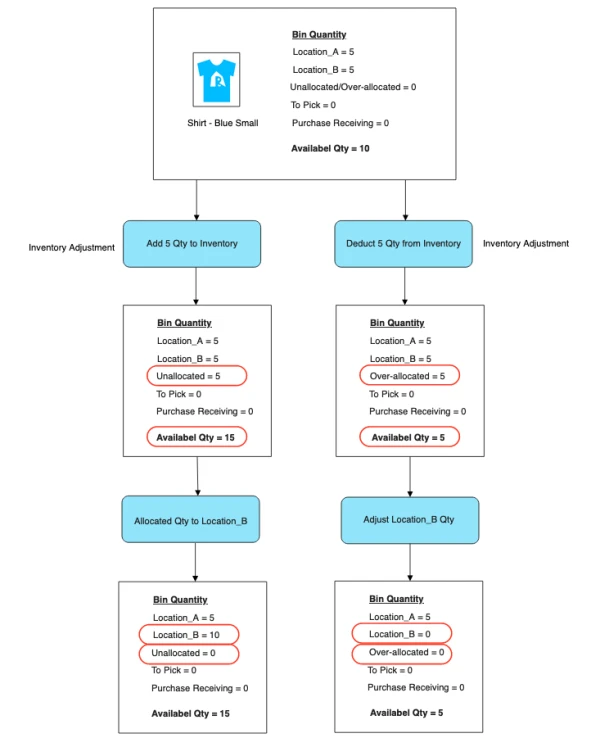
Inventory Adjustment - Adding
- When adjusting your inventory Qty, Available qty will be Change. Example in diagram 3, Available qty change to 15 if qty added.
- Unallocated qty change according to item qty being added. Example in diagram 3, Unallocated qty change to 5 if qty added.
- No change for Bin Location as no item is being assigned to Bin Location.
Available qty = Total Bin Location Qty + Unallocated Qty = (5+5) + 5 = 15
Assign Location
- You can assign Unallocated qty to Bin Location. Example in diagram 3, Assign Unallocated qty to Bin Location "Location_B", "Location_B" qty change to 10.
- Unallocated qty change according to item qty being assign from it. Example in diagram 3, Unallocated qty change to 0.
Available qty = Total Bin Location Qty + Unallocated Qty = (10+5) + 0 = 15
Inventory Adjustment - Deducting
- When adjusting your inventory Qty, Available qty will be Change. Example in diagram 3, Available qty change to 5 if qty deducted.
- Over-allocated qty change according to item qty being deducted. Example in diagram 3, Over-allocated qty change to 5 if qty deducted.
- No change for Bin Location as no item is being removed from Bin Location.
Available qty = Total Bin Location Qty - Unallocated Qty = (5+5) - 5 = 5
Assign Location
- You can remove Over-allocated qty by adjusting Bin Location. Example in diagram 3, Remove Over-allocated qty from Bin Location "Location_B", "Location_B" qty change to 0.
- Over-allocated qty change according to item qty being removed from Bin Location. Example in diagram 3, Over-allocated qty change to 0.
Available qty = Total Bin Location Qty - Over-allocated Qty = (5+0) - 0 = 5