How to import item's BIN location
Last updated: April 22nd, 2024
In this article:
Using CSV file to assign item's location
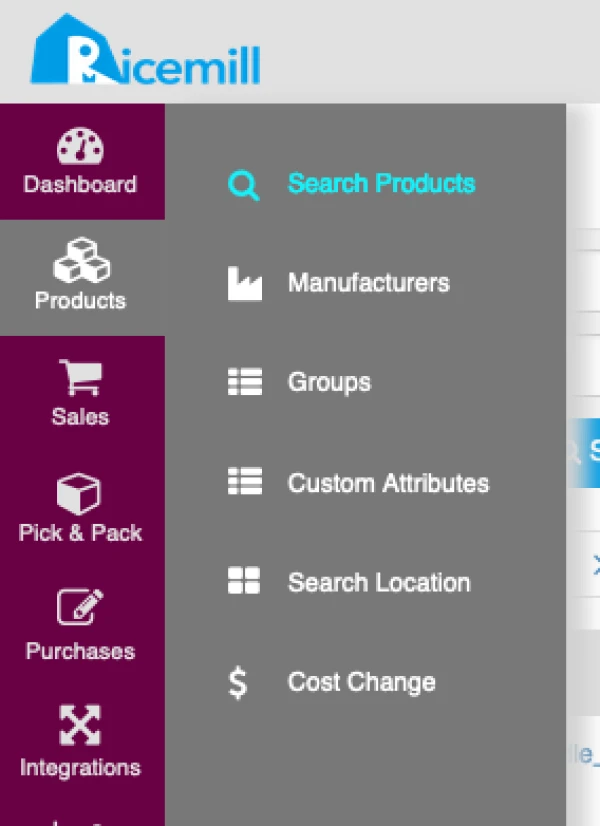
Step 1:
- Go to Products -> Products
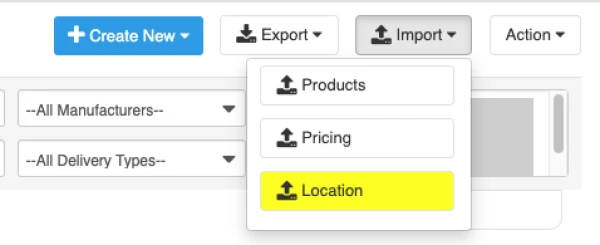
Step 2:
- Select Import -> Location
Step 3: Create your csv import file
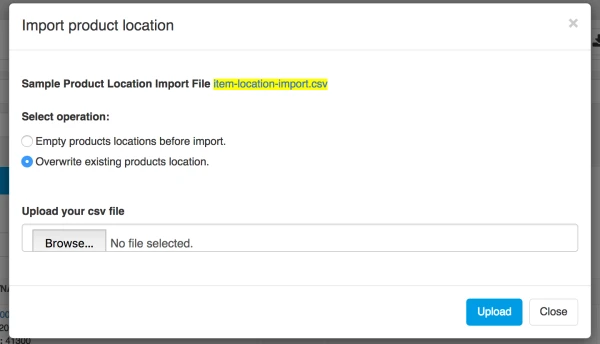
- Download sample location file for the import format.
- Edit the file downloaded
CSV file format
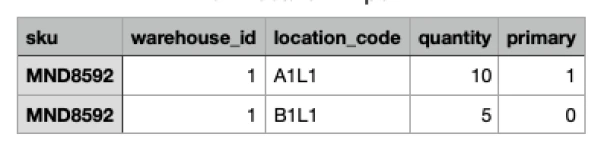
- sku -> item sku
- warehouse_id -> Id of the warehouse where bin location located. See How to find warehouse ID.
- location_code -> Bin location code you create for a warehouse. See How to setup warehouse bin location.
- quantity -> Item quantity you want to assign to bin location
- primary -> Set '1' for Primary, '0' for Secondary.
| You can set multible bin location for 1 item, when doing picking, system will show Primary location first.
Step 4: Import Option
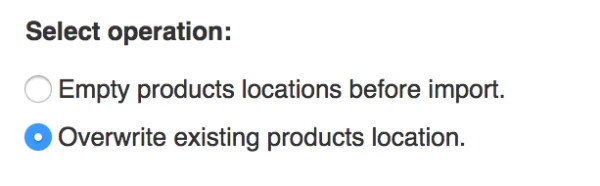
Option 1: "Empty products locations before import."
- If you select this option, all the existing locations for the item will be remove and new location will be assign to it. Select this option only if you want to clear all the location for item
Option 2: "Overwrite existing products location."
- If you select this option, if the location exist, it will overwrite it.
Step 5: Upload file
- Upload your CSV file and click "Upload" button to import the file.
How to find warehouse ID
Steps:
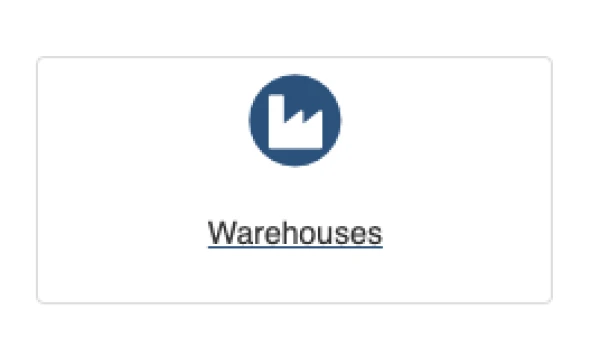
- Go to Settings > Warehouses
- Click on "Edit" button of the Warehouse
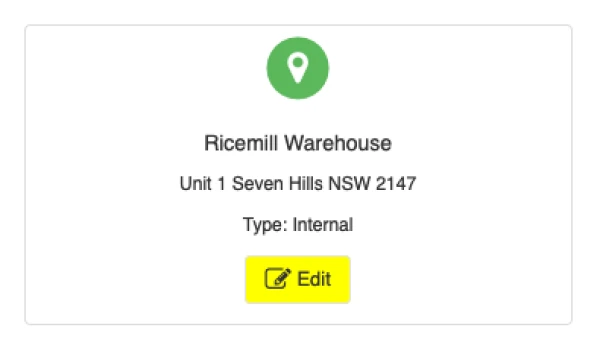
- On the last section of the page URL last section (On Browser), you will ge the warehouse id