How to create a purchase order, receiving and putaway
Last updated: April 23rd, 2024
In this article:
How to create a new purchase order
Step 1:
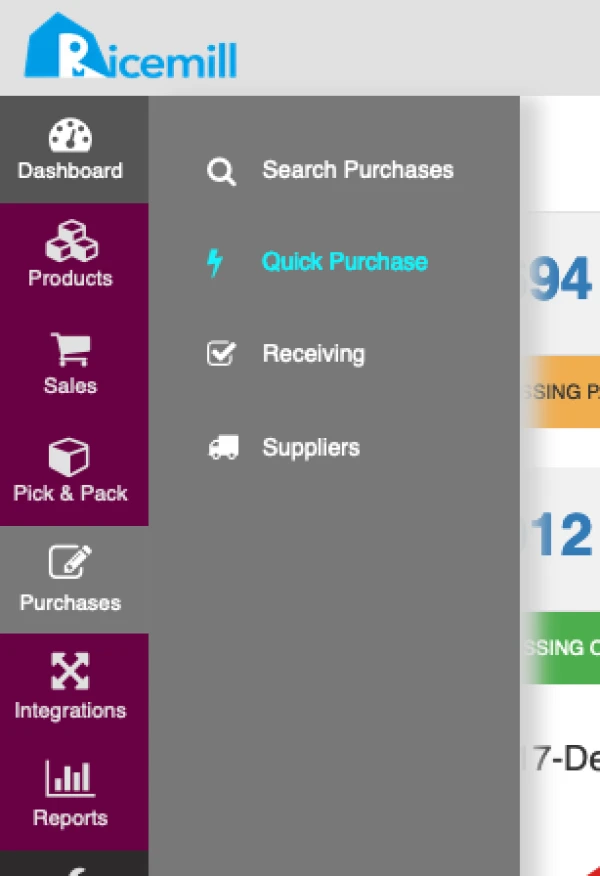
- Go to Purchases > Quick Purchase
Step 2:
- Select Supplier and fill in ETA, PO Date and PO#

Step 3:
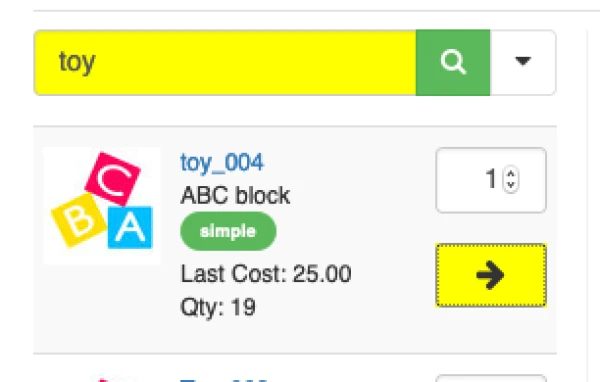
- Search the item by enter barcode, SKU or item's name
- Add the item by clicking on "Arrow Right" icon
Step 4:
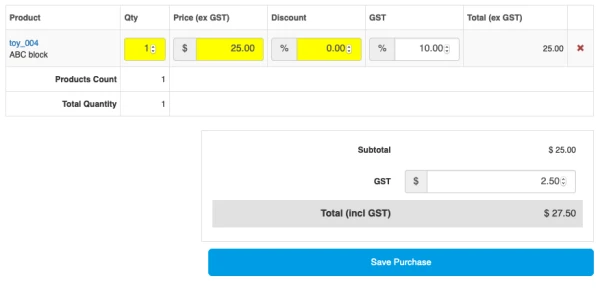
- Review items add to purchase order
- You can edit Qty, Price or add discount to item line
- Click on "Save Purchase" to save your purchase order.
Step 5 (Optional):
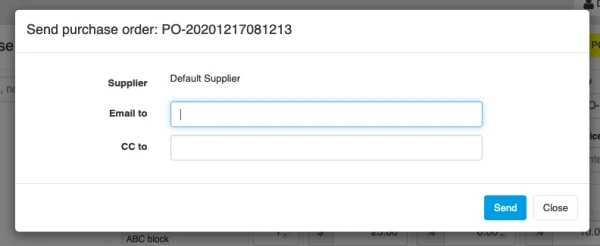
- You can email your purchase order to supplier by clicking on "Email PO" button

Step 6
- If step 5 skip, you need to click on "Mark Sent" to indicate purchase order has been send to supplier using other method.
- Note: This purchase order will not be send to supplier, you need to manually send it to your supplier.

Purchase Order Receiving
Step 1:
- When your purchase order Arrive.
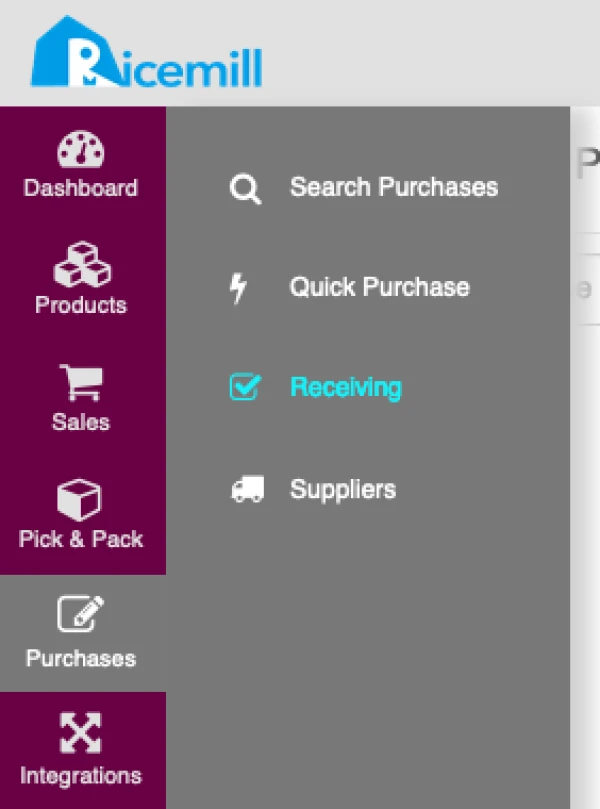
- Select "Purchasing" > "Receiving" from left menu.
Step 2:
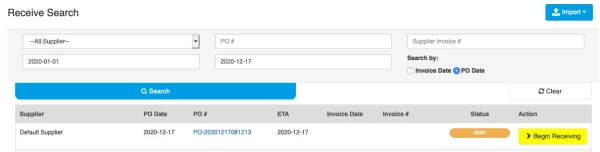
- Search purchase order.
- Select purchase order you are receiving and click on "Begin Receiving" from result line.
Step 3:
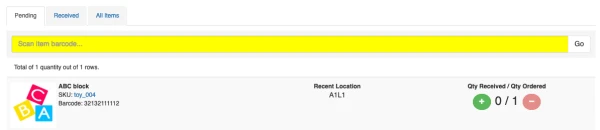
- Scan the item's barcode or "+" button to mark item received
Step 4:
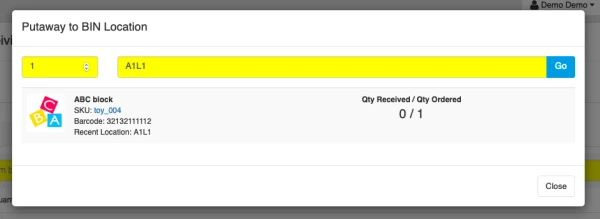
- Enter "Qty" and assign "Bin Location" to item.
- Hint: You can assign multiple Bin Location to item.
- Note: This step only update the Bin Location Qty, item's available qty will not be update until you 'Publish' the order.
- Repeat this step until all items received been assign location.
Step 5:
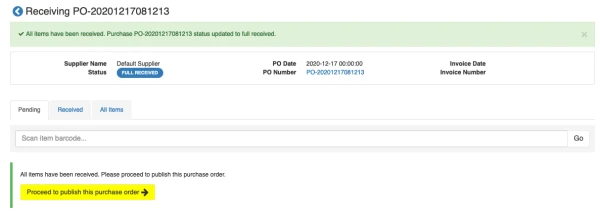
- Click on "Proceed to publish this purchsae order" button to finalise this purchase order.
Step 6:
- Check the purchase order details are corrects.
- Click on "Publish" to finalise your purchase order.
- Item's available qty will be update after you publish your purchase order.
Note: once you publish the purchase order, you cannot edit it.
