Create a quick sale order
Last updated: April 22nd, 2024
In this article:
Create a quick sale order
Step 1:
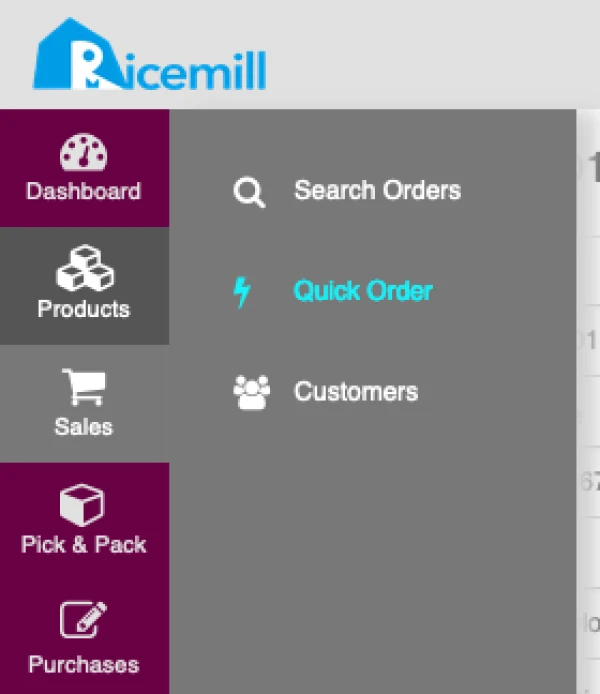
- Go to Sales > Quick Order
Step 2:
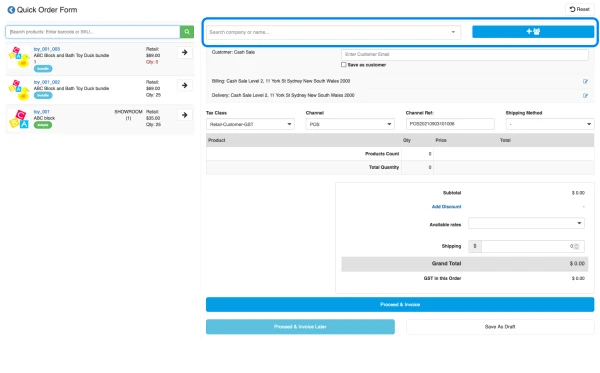
You can choose to use existing customer details or enter new customer details for Billing and Delivery Address.
Option 1:
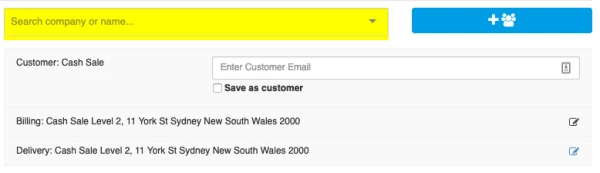
- Search existing customer using company or name
Option 2:
-
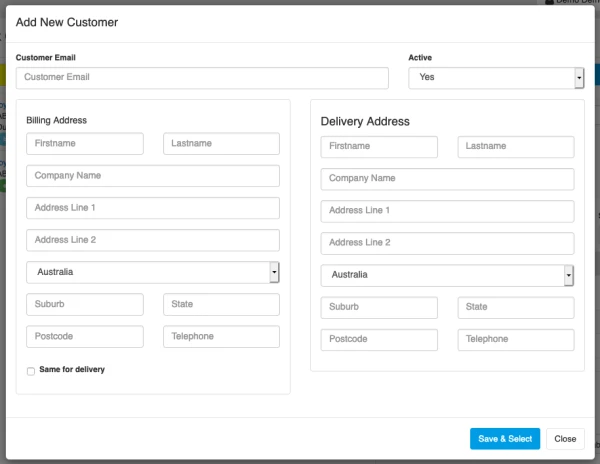
Add new customer using "Add customer" button

-
Enter customer details and click on "Save & Select"
Option 3:
- Using system preset details "Cash Sale"
Step 3:
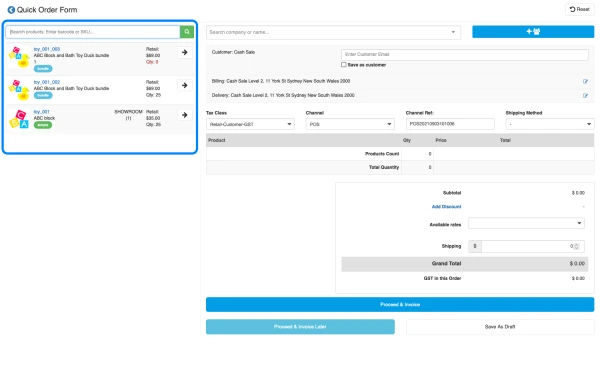
- Search "Product" by Barcode or SKU or Title.
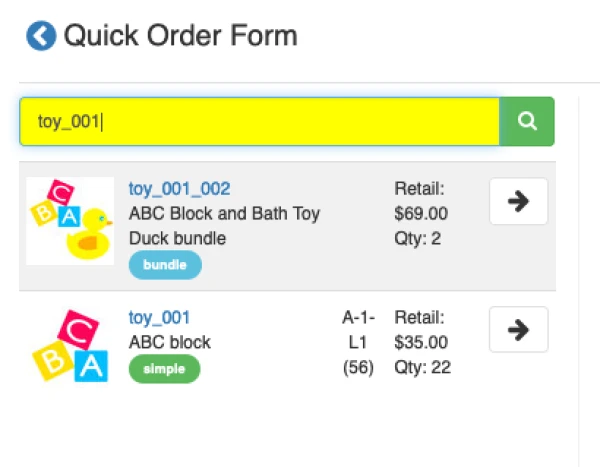
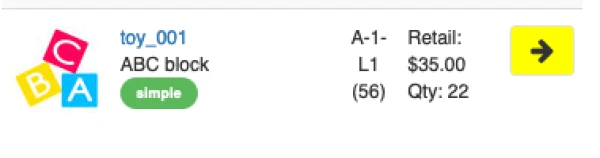
- If only 1 result found, system will auto add the item to order line for you, if more that 1 result found, you need to manually select the item you want to add.
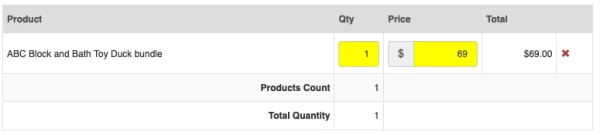
- You can edit the item qty and price
Step 4:
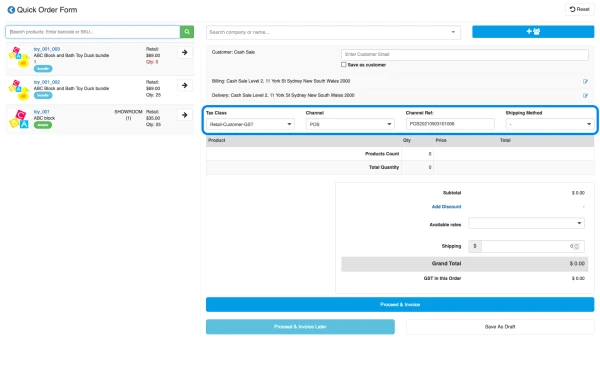
-
Select "Tax Class", "Channel", "Shipping Method".
-
You can use preset Channel Ref or enter your own, it has to be unique.
-
Select "PICKUP" as Shipping Method for walk-in customers.
| Note when setting shipping method to PICKUP
- Order will be marked as complete.
- Invoice will be generated automatically.
- All products in the order will be picked automatically from primary location.
- Payment record will be automatically created when you select CASH as payment method.

Step 5:
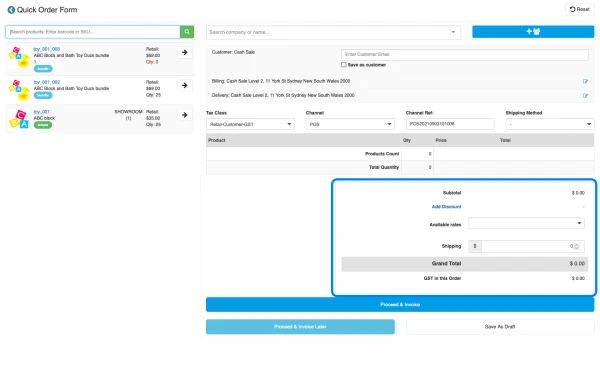
- Click on "Add Discount" to add discount
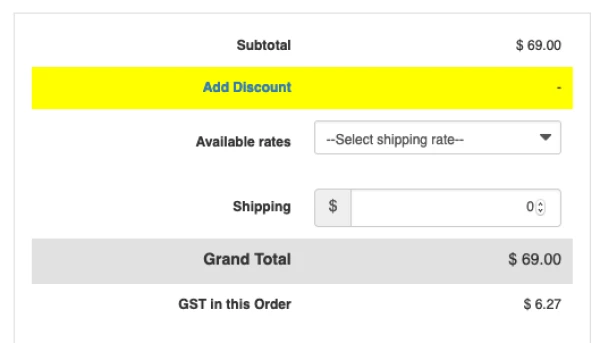
- Select discount by "$" (Dollar value) or "%" (Percentage of Product price), enter the value then click on "Save".
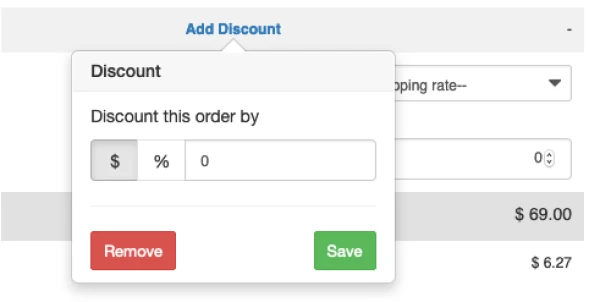
Step 6:
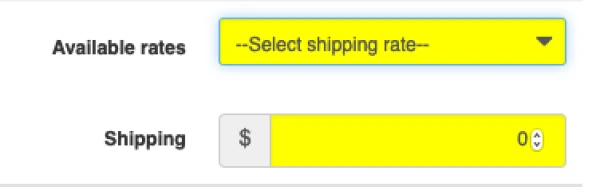
- Select Shipping from "Available rates" or manually enter.
Step 7:
- Option 1: Click Proceed & Invoice button. The order will be marked as "Complete".
- Option 2: Click Proceed & Invoice Later button. The order will be marked as "Pending".
- Option 3: Click Save As Draft button. The order will be marked as "Draft".

Step 8: (If choose "Proceed & Invoice")
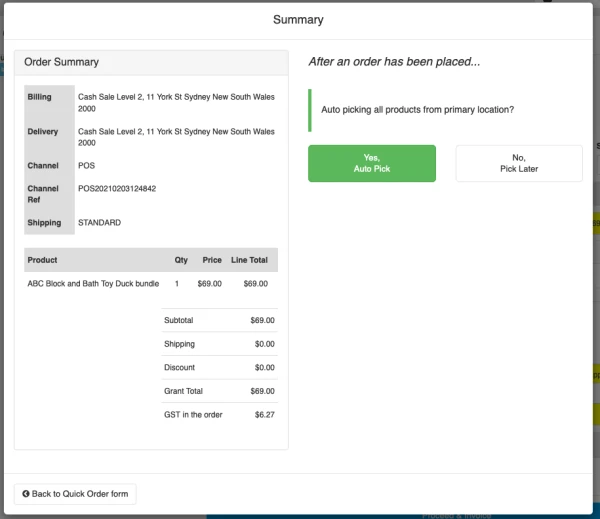
- On the Summary screen, select to "Auto pick" all items from primary or "Pick Later"
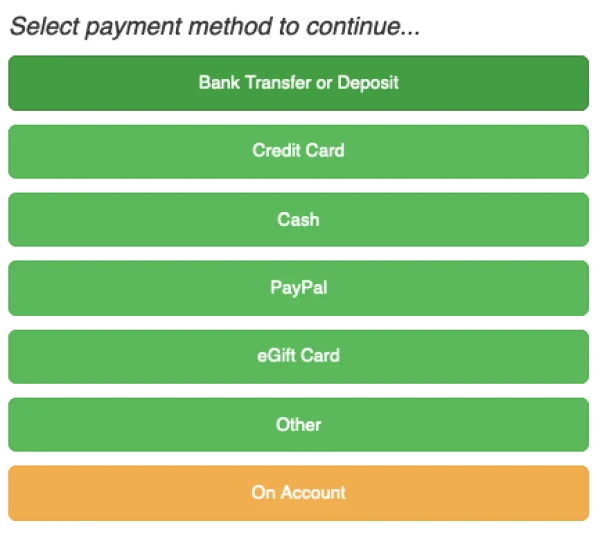
- Select payment method to complete the quick order
Step 8: (If choose "Proceed & Invoice Later")
- Select payment method to complete the quick order