Create quick order with auto pick
Last updated: April 22nd, 2024
In this article:
Auto picked products from primary location after quick order created
Step 1:
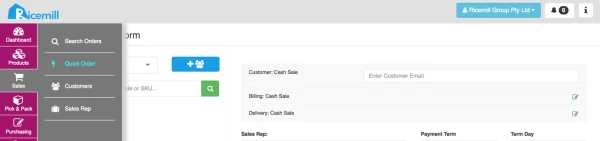
- Go to Sales -> Quick Order
Step 2: Select customer and items
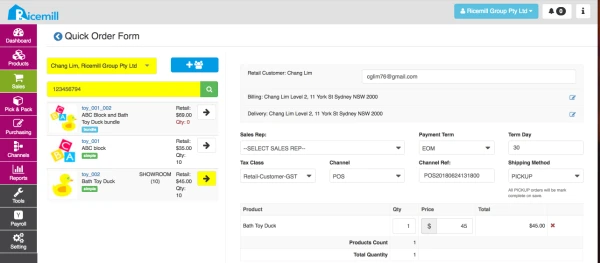
- Select customer by using search customer
- Select item by scan barcode or enter SKU
Step 3:
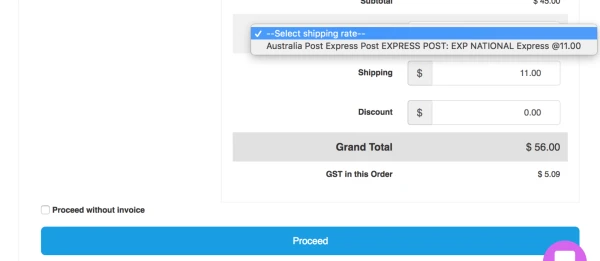
- Select Shipping method and rate.
- Click on "Proceed".
Step 4: Auto Pick Option (Only available if Option Enable at sale setting)
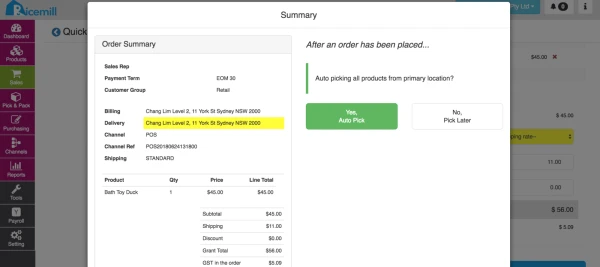
- Select "Yes, Auto Pick" if you want system auto deduct qty from primary location. (If primary location is set)
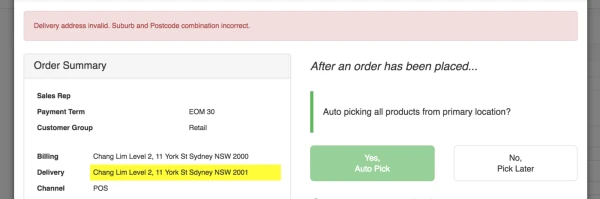
- Make sure the Delivery address postcode and suburb are correct and match. For example "Sydney" instead of "Sdyney", and postcode for Sydney is "2000" instead of "2001"
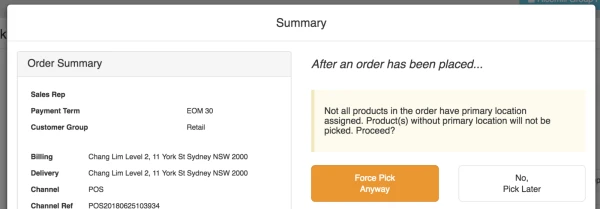
- If product primary location not set, you can "Force Pick Anyway", but it will not deduct from any set location, and will deduct from "UNKNOWN" location.
Step 5: Payment Method
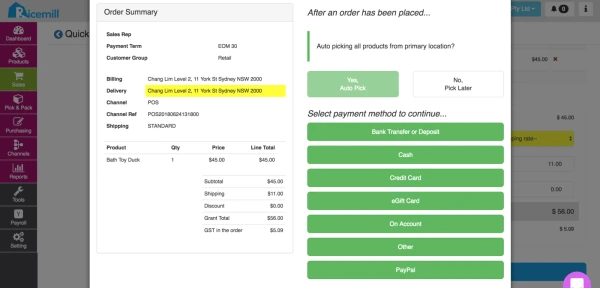
- Select payment method to finalise the order.