Troubleshooting: Common Shopify errors and solutions
Last updated: April 24th, 2024
In this article:
How to fix variant image upload issue to Shopify?
Issue
Different variant image show at Shopify product page.
Cause
Using the same image file name for variant item.
How to fix
- Check if you are using the same image file name for your variant products.
- If images name are same, then rename the image file.
- Delete the copy at Ricemill, and re-upload the image file (after rename) to Ricemill again.
- Upload to Shopify again.
Shopify API Exception:Fulfillment xxxxxxxxxx base: All line items must be stocked at the same location
Other similar errors
- None of the items are stocked at the new location.
- None of the items are stocked at the same location.
Cause
- The Shopify Location mapped in Ricemill is not enabled for the SKU.
- Ricemill attempts to fulfil the order using the mapped location but fails because at least one of the order's products is not assigned to the mapped location in Shopify.
How to fix
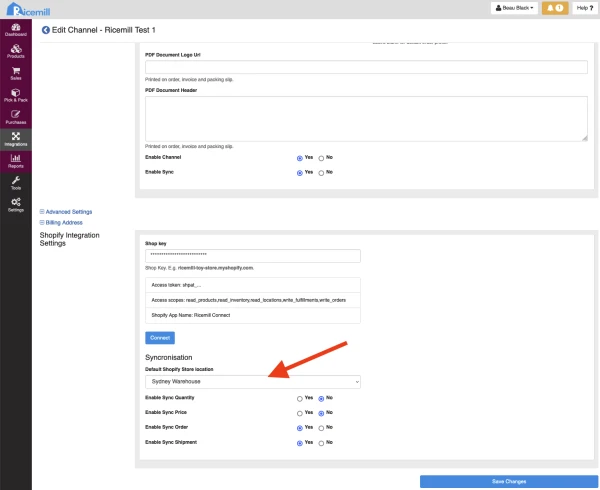
In Ricemill
- Go to Integrations
- Click on "Setting" (Gear icon)
- Verify if the location mapped is correct.
In Shopify
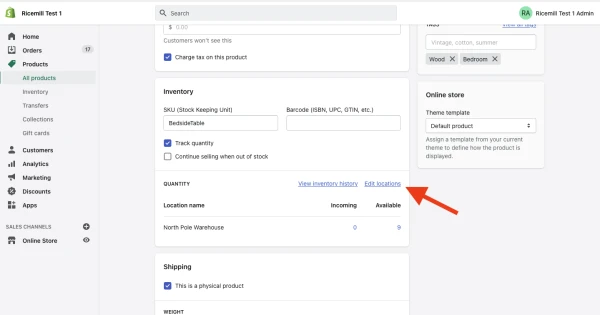
- Go to your shopify's admin
- Open the product page
- Under Inventory section, click the Edit Locations
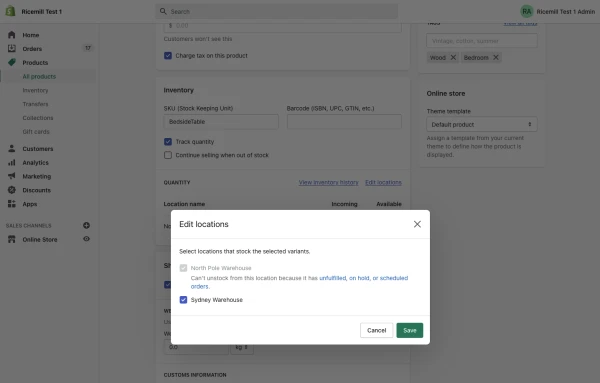
- Select the location that is mapped in Ricemill and click save.
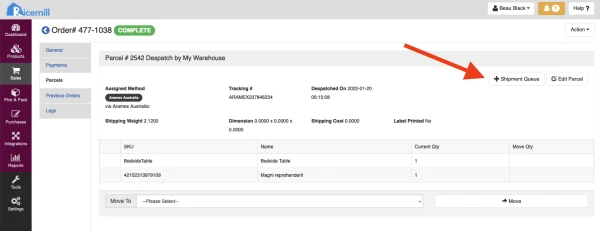
After you've done the above steps, you can re-queue the shipment upload to Shopify.
In Ricemill
- Open up the order
- Select Parcels tab
- Click "Shipment Queue"
- Ricemill will attempt to upload the shipment to Shopify on next sync.