Last updated: April 26th, 2024
In this article:
How to generate Consumer Key and Consumer Secret from WooCommerce
WordPress permalinks must be enabled at Wordpress Settings > Permalinks.
Step 1:
-
Login to your wordpress account.
-
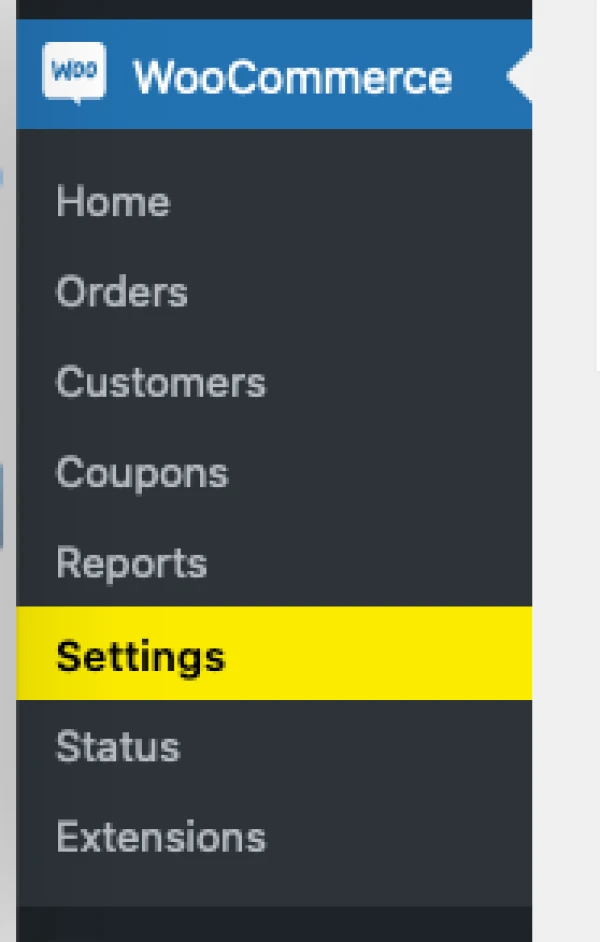
Go to: WooCommerce > Settings
Step 2:
- Click on "Advanced" tab

Step 3:
-
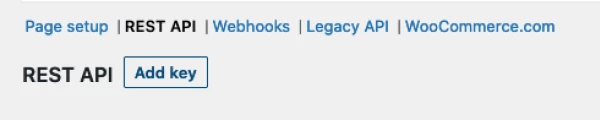
Click on "REST API" then
-
Click on "Add Key".
Step 4:
-
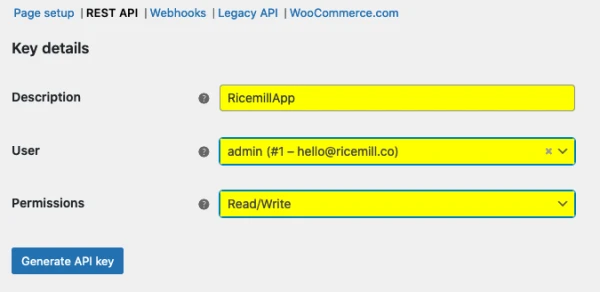
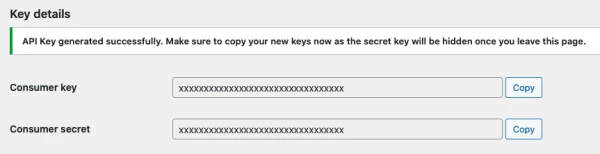
You are taken to the Key Details screen
-
Add a Description.
-
Select the User you would like to generate a key for in the dropdown.
-
Select Read/Write for Permission.
-
Click on "Generate API Key"
Step 5:
- Save the Consumer Key and Secret. You need these keys to connect Ricemill to WooCommerce.
How to connect to WooCommerce from Ricemill
Need to complete How to generate Consumer Key and Consumer Secret from Woocommerce before start
Step 1:
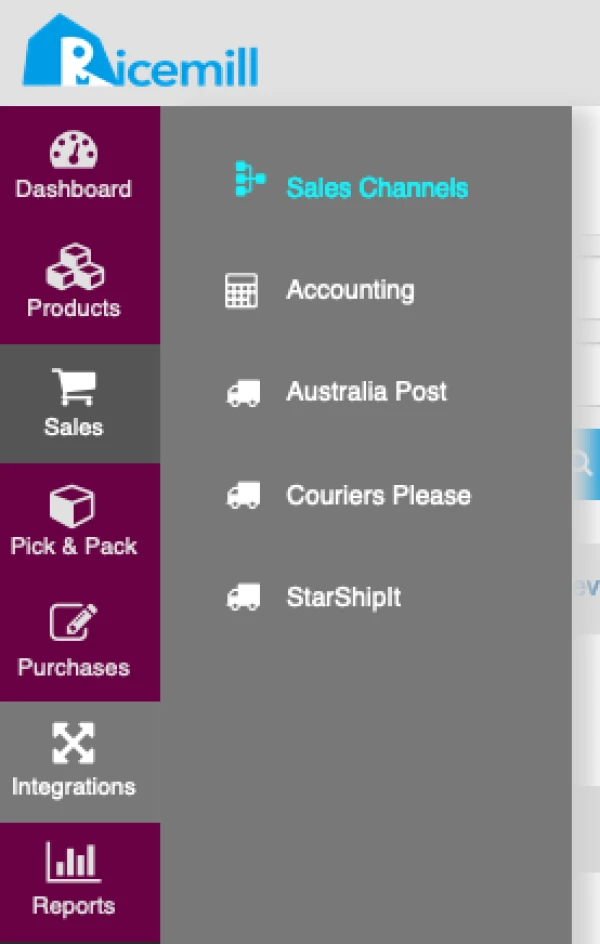
- Go to Integration > Sales Channel.
Step 2:
- Click on "Add Channel" button

Step 3:
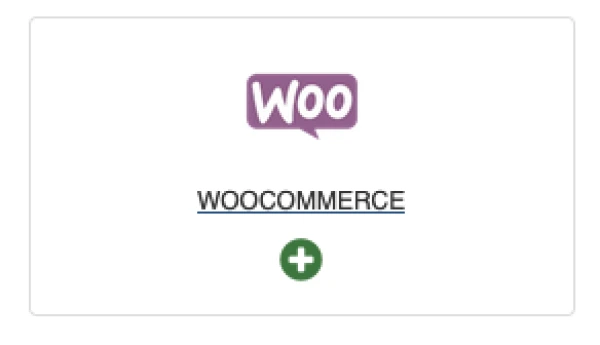
- Click on + ‘Woocommerce’
Step 4:
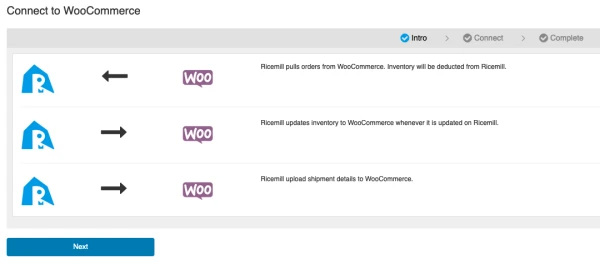
- Click on ‘Next’ button
Step 5:
-
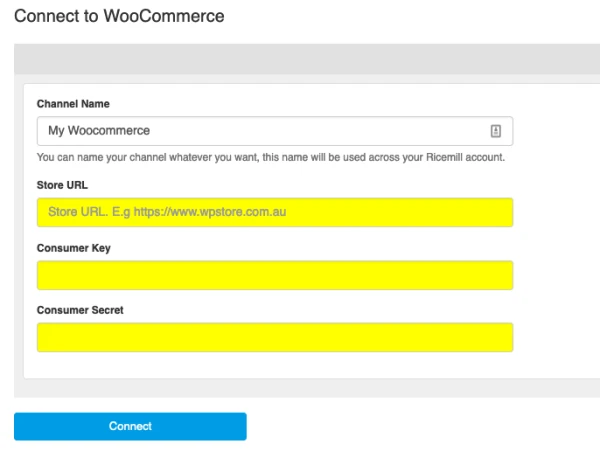
Enter Channel Name you want to use for this channel, for example "My WooCommerce"
-
Enter your store URL
-
Enter consumer key and consumer secret you get from How to generate Consumer Key and Consumer Secret from WooCommerce
-
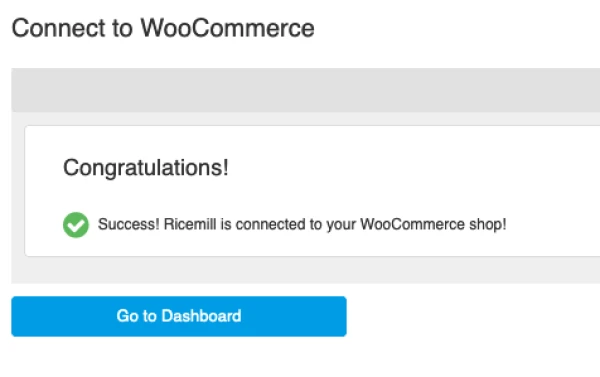
Click on "Connect" button
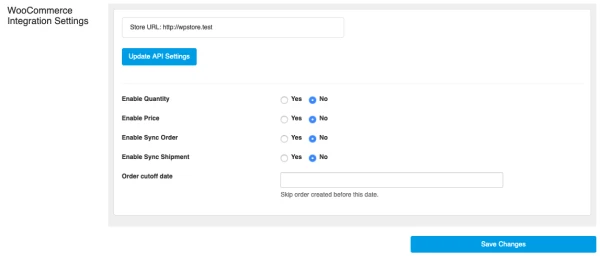
WooCommerce Integration Settings
Step 1:
- Go to Integration > Sales Channel.
Step 2:
- Click on settings icon of the WooCommerce channel.

Step 3:
-
At Settings page, browse to "WooCommerce Integration Settings" section
-
Enable sync options below:
-
Enable Quantity -> Enable Inventory quantity update from Ricemill to WooCommerce
-
Enable Price -> Enable Product price update from Ricemill to WooCommerce
-
Enable Sync Order -> Enable Order download from WooCommerce to Ricemill
-
Enable Sync Shipment -> Enable Shipment info (for example "Tracking Number") upload from Ricemill to WooCommerce
-
Order cutoff date -> Enter the start date and time you want your orders download from WooCommerce to Ricemill. Order created before this date will be skip.
- Click on "Save Changes"